

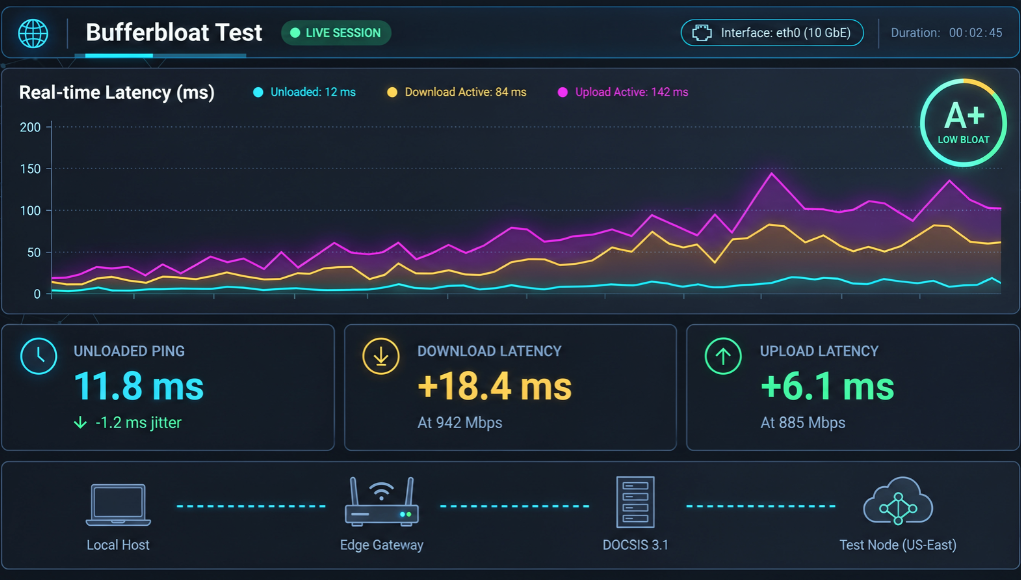
A bufferbloat test shows whether your internet connection becomes slow to respond while it is busy. Your speed may still look excellent while gaming, calls, and browsing start lagging. Measuring latency under download and upload load exposes that hidden problem.
A good test compares your idle latency with latency while the connection handles heavy downloads and uploads. A small increase means your network stays responsive under pressure. A large increase points to excessive queueing somewhere between your device and the internet.
| What the test checks | What it tells you | What to watch |
|---|---|---|
| Idle latency | Baseline response time | Lower and stable is better |
| Download latency | Delay during heavy downloading | Large increases can hurt gaming and calls |
| Upload latency | Delay while uploading | High numbers often affect meetings and gaming |
| Jitter | Variation between latency measurements | Lower variation usually feels smoother |
| Download speed | Available downstream bandwidth | Speed alone does not reveal responsiveness |
| Upload speed | Available upstream bandwidth | Low upload capacity can expose queueing quickly |
| Loaded-latency grade | Overall responsiveness under pressure | A or B is a useful target on Waveform |
Key takeaway: Internet speed and internet responsiveness are different measurements. A 500 Mbps connection can still feel sluggish when another device starts downloading. Testing both idle and loaded latency shows whether the problem appears only when your connection becomes busy.
What Is Bufferbloat?
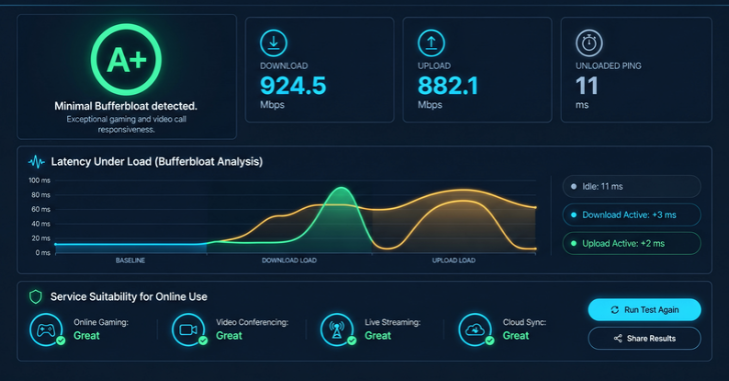
Bufferbloat Test happens when network equipment keeps too much traffic waiting in a queue. Those waiting packets increase response times even when the connection still moves data quickly. The result can feel like lag, delayed clicks, choppy calls, or unstable online gaming.
The problem often becomes noticeable only when someone uses much of the available bandwidth. A large cloud backup or game download can create enough traffic to fill a queue. Other devices then wait behind that traffic before their packets can move.
The slowest part of the connection usually deserves the most attention. That bottleneck might be your router, Wi-Fi connection, modem, or internet service. Waveform specifically notes that the router is not always the source.
Why a Normal Speed Test Can Miss the Problem
Traditional speed tests focus heavily on download and upload throughput. Those numbers answer how much data your connection can transfer during a period. They do not always show how responsive that connection remains during heavy use.
Imagine that your connection delivers 600 Mbps while idle ping sits near 15 milliseconds. A normal result might look excellent at first glance. Yet a loaded ping of 250 milliseconds could make multiplayer gaming and video conversations feel delayed.
This difference explains why upgrading an internet package does not always solve home network lag. More bandwidth can reduce congestion in some households. It cannot guarantee that network queues stay short.
How to Run a Bufferbloat Test Correctly
Testing conditions matter because Wi-Fi interference and background traffic can distort your result. Start with a wired computer when possible, then repeat the test using Wi-Fi. Comparing both results helps identify whether the wireless connection is contributing to the delay.
- Connect a computer to your main router with Ethernet when possible.
- Pause cloud backups, large downloads, game updates, and streaming on other devices.
- Close unnecessary browser tabs and applications on the test computer.
- Run a loaded-latency test such as Waveform or another reputable testing service.
- Record idle, download-loaded, and upload-loaded latency separately.
- Run the test two or three times rather than trusting one result.
- Repeat the same process over Wi-Fi from your normal working or gaming location.
- Compare the wired and wireless results before changing equipment.
Browser tests create traffic while continuing to measure response times. Bufferbloat.org describes phases for quiet latency, download pressure, upload pressure, and result computation. It also warns that device load, VPNs, Wi-Fi, browsers, and ISP congestion can influence measurements.
For homes with weak wireless coverage, Newsloger’s mesh WiFi guide explains placement and wired backhaul. Better coverage can remove wireless bottlenecks before you blame your broadband service. Ethernet remains especially useful for establishing a clean baseline.
How to Read Your Results
The most useful number is often the increase between idle latency and loaded latency. Suppose your idle latency is 20 milliseconds and download-loaded latency reaches 50 milliseconds. That represents roughly 30 milliseconds of added delay during download activity.
Waveform’s current grading system focuses on this added latency rather than raw internet speed. Its July 2026 guidance places A+ below 5 milliseconds, A below 30, and B below 60. C extends below 200, D below 400, while F starts at 400 milliseconds or more.
Those thresholds belong to Waveform’s grading system and should not be treated as universal standards. Other testing services can calculate grades differently. The detailed latency values matter more than comparing letters across unrelated tools.
| Added latency | Waveform grade | Practical interpretation |
|---|---|---|
| Under 5 ms | A+ | Excellent responsiveness |
| Under 30 ms | A | Strong result for most uses |
| Under 60 ms | B | Usually responsive under load |
| Under 200 ms | C | Delays may become noticeable |
| Under 400 ms | D | Calls and gaming may struggle |
| 400 ms or more | F | Severe responsiveness problem |
A high idle ping and high loaded ping can indicate a different issue. Distance to the test server, cellular routing, or ISP paths may already create baseline delay. Focus on how much the latency rises once traffic begins.
Download and Upload Problems Can Look Different
A connection may behave well during downloads but fall apart during uploads. This pattern is common when available upstream bandwidth is much smaller than downstream capacity. Cloud backups, photo syncing, livestreaming, and security cameras can then consume that limited upstream path.
The reverse can also happen during large downloads. Game installations, operating-system updates, and several 4K streams can pressure downstream capacity. Every interactive packet must compete with that traffic.
Fixed wireless connections can vary more because signal conditions and local network demand change. Newsloger’s T-Mobile Home Internet performance guide covers how signal strength, congestion, and gateway placement affect performance. These variables are useful when diagnosing a U.S. 5G home internet connection.
Ethernet Is the Best Diagnostic Starting Point
A wired test removes many wireless variables from the first measurement. If Ethernet produces a strong result but Wi-Fi does not, your internet service may be functioning correctly. The problem is more likely inside your home network.
Distance, walls, interference, crowded channels, and weak mesh backhaul can all increase wireless delay. Moving the access point can sometimes help more than buying a faster service plan. Wired backhaul can also reduce the amount of radio capacity used between mesh nodes.
Newsloger’s broader Tech section contains additional guides for home networking and device troubleshooting. Checking related device issues can help when one computer performs differently from every other device. A single bad Wi-Fi adapter should not be mistaken for a whole-home broadband problem.
How to Fix High Latency Under Load
Start with the easiest causes before replacing equipment. Update your router firmware and stop unnecessary background transfers during another test. Then compare Ethernet and Wi-Fi results again.
If the wired result still gets much worse under load, check your router for Smart Queue Management. SQM controls how traffic is queued so interactive packets do not sit behind large transfers. OpenWrt documentation recommends CAKE as a strong queue discipline for controlling this type of delay.
Many SQM configurations work by shaping traffic slightly below the connection’s maximum rate. This lets your router control the queue instead of allowing a larger queue to build elsewhere. The correct settings depend on your router and internet service.
Replacing a router can make sense when existing hardware lacks effective queue management. That decision should come after testing, not before it. A new router cannot fix every case of ISP congestion or unstable wireless service.
How to Tell Whether the Router or ISP Is Responsible
Run the same wired test during different parts of the day. A good morning result and poor evening result can point toward shared-network congestion. A bad result at every hour makes local equipment or connection provisioning more suspicious.
Next, compare your router test with a direct modem connection only when your ISP and equipment support that safely. Some cable services allow a computer to connect directly for temporary testing. Many fiber and fixed-wireless setups require the provider gateway, so this comparison is not always practical.
You should also record several test results before contacting your provider. Include the date, time, idle latency, loaded latency, and wired download and upload speeds. Consistent evidence is more useful than saying that the internet “feels slow.”
What Is a Good Result for Gaming and Video Calls?
Real-time applications care about delay and consistency more than huge speed numbers. Gaming sends relatively small amounts of traffic but needs responses to arrive quickly. Video meetings also suffer when upstream traffic waits in long queues.
A Waveform grade of A or B indicates relatively modest added latency under its current scoring method. A C result deserves closer attention when you notice real-world delays. D or F results provide stronger evidence that heavy traffic is damaging responsiveness.
Your baseline ping still matters for games hosted far from your location. Fixing local queueing cannot change the physical distance to a distant server. It can prevent household traffic from adding unnecessary delay on top.
When Should You Upgrade Your Internet Plan?
Consider a faster plan when your household regularly saturates its available capacity. A small cable or fixed-wireless plan can become busy quickly when several users stream and upload simultaneously. More bandwidth creates extra room before congestion begins.
Do not assume speed is automatically the solution. A fast connection with poorly managed queues can still produce large latency spikes. Testing after every change tells you whether the upgrade produced a meaningful improvement.
Your next step should depend on the evidence you collected. Fix Wi-Fi when wired performance is good, configure SQM when queueing is local, and contact your ISP when repeated wired tests remain poor. That sequence prevents expensive guesswork.
Final Takeaway
Internet performance is not only about how many megabits you receive. Responsiveness under pressure determines whether games, meetings, browsing, and smart-home traffic remain smooth together. Testing both idle and loaded latency exposes problems that an ordinary speed check can hide.
Start with Ethernet, repeat the measurement, and then compare Wi-Fi. Use those results to decide whether coverage, queue management, or the ISP needs attention. This method gives you evidence before you spend money on faster service or new networking hardware.
Frequently Asked Questions
What does a bufferbloat test measure?
A bufferbloat test measures how much latency changes while your internet connection is busy. It usually compares idle response times with response times during downloads and uploads. The difference shows whether traffic queues are adding noticeable delay.
Is bufferbloat the same as slow internet?
No, because throughput and responsiveness measure different things. A connection can download files quickly while interactive traffic waits too long. That is why a high-speed plan can still feel laggy during heavy use.
Is an A or B grade good?
On Waveform’s current scale, A+ through B represents lower added latency than the weaker grades. A C result can introduce noticeable delays, while D and F indicate larger increases. Always check the actual milliseconds because grading systems vary between services.
Can Wi-Fi cause high loaded latency?
Yes, because Wi-Fi can become the slowest link between a device and the internet. Weak signal, interference, distance, and wireless mesh backhaul can all reduce available capacity. Compare Ethernet and Wi-Fi tests before deciding the router or ISP is responsible.
Does SQM reduce latency?
SQM is designed to control packet queues before they become excessively long. Implementations using CAKE or fq_codel can improve responsiveness when properly configured. Your router must have enough processing capacity for your connection speed.
Should I test more than once?
Yes, because one browser test is only a snapshot of current network conditions. Repeat the measurement several times and at different hours. Consistent results give you a much stronger basis for troubleshooting.