

How to Use Google Authenticator Transfer? is an important guide for anyone using Google Authenticator to protect their online accounts through two-factor authentication (2FA). Since the app generates time-based one-time passwords linked to a specific device, users often need to transfer their accounts when switching or losing their phone.
Understanding the correct transfer process ensures that important services such as email, banking, and social media remain accessible without interruption. This guide explains everything from preparation and step-by-step transfer methods to verification, common issues, and safety tips, helping users securely move their authentication data between devices with ease.
| Category | Details |
| Topic | How To Use Google Authenticator Transfer? |
| App Used | Google Authenticator |
| Purpose | Transfer 2FA accounts from old device to new device |
| Importance | Prevents account lockout and ensures continuous access |
| Key Steps | Export accounts, generate QR code, scan on a new device, and verify accounts. |
| Transfer Method | Secure QR code-based encrypted transfer. |
| Preparation | Old device access, updated app, backup codes, stable connection |
| Verification | Test login access for all accounts after transfer |
| Common Issues | QR scan errors, missing accounts, outdated app versions |
| Solutions | Retry process, manual re-setup, backup recovery options |
| Safety Tips | Keep the QR code private, avoid sharing it, and use a secure environment. |
| Recovery Options | Backup codes, email verification, and customer support |
How To Use Google Authenticator Transfer?
Google Authenticator is a widely used security application that helps protect online accounts by generating time-based one-time passwords (TOTP). It is commonly used for two-factor authentication (2FA), adding an extra layer of security beyond just passwords. However, when users change or lose their phone, they often need to transfer their authenticator accounts to a new device.
Understanding how to use the Google Authenticator transfer is essential to avoid being locked out of important accounts. The transfer process allows users to securely move all their authentication codes from one device to another without losing access to services such as email, banking apps, or social media platforms.
Why is Transferring Google Authenticator Important?
Transferring Google Authenticator becomes necessary whenever you switch to a new phone, reset your device, or lose access to your old one. Since the app generates time-sensitive codes linked to a specific device, losing access to that device can make it difficult, or even impossible, to log in to your accounts.
One of the main reasons transfer is important is account security and continuity. Without proper transfer, users may get locked out of critical accounts, especially those protected by two-factor authentication. This can include email accounts, banking platforms, and work-related systems.
Another reason is convenience and time-saving. Instead of manually disabling and re-enabling 2FA on every account, transferring allows users to move everything in one process, making the transition to a new device much smoother. Finally, it ensures data integrity and recovery of access, which is especially important for people who rely heavily on digital services for personal or professional use.
Before You Start the Transfer Process
Before initiating the transfer in Google Authenticator, ensure both your old and new devices are ready. The old device must still have access to the authenticator app, as the transfer process depends on it.
It is also recommended to install the latest version of the app on your new device from the official app store. Ensuring both devices are fully charged and connected to a stable internet connection helps avoid interruptions during the transfer.
Additionally, users should double-check that they have backup codes for critical accounts, just in case something goes wrong during the process. These preparation steps help ensure a smooth and secure transfer experience.
Step-by-Step Guide to Transfer Accounts
Simple and Secure Process
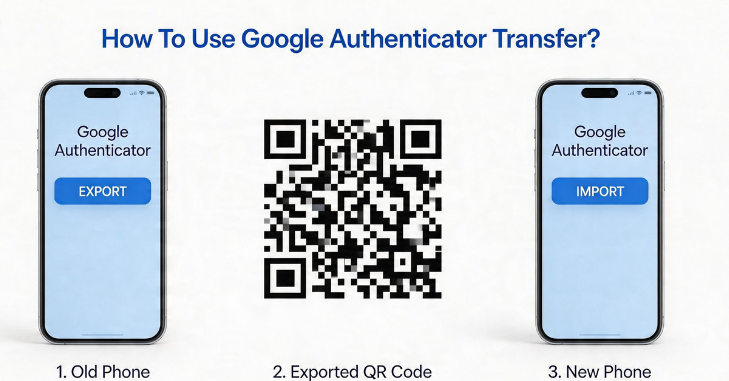
Transferring accounts in Google Authenticator is designed to be simple and secure. The process mainly involves exporting accounts from the old device and importing them into the new one.
Opening the Transfer Option on the Old Device
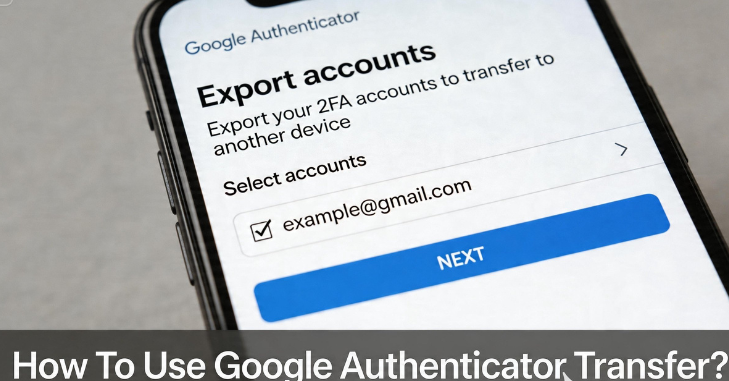
The first step is to open the app on your old device and select the transfer option. From there, you can select the accounts you want to move.
Generating the QR Code
The app then generates a QR code containing encrypted account information, which is used to transfer the selected accounts securely.
Importing on New Device
Next, you open the app on your new device and choose the option to import or scan a QR code. By scanning the code displayed on the old device, all selected accounts are transferred automatically.
Verifying the Transfer
Once completed, it is important to verify that all accounts are working correctly on the new device before removing them from the old one.
Using the Transfer Accounts Feature
The “Transfer Accounts” feature in Google Authenticator is specifically designed to simplify the migration process. Instead of manually reconfiguring each account, users can transfer multiple accounts at once.
This feature works by securely encoding account information into a QR code. The data is encrypted and only readable by the Google Authenticator app, ensuring safety during transfer.
Users can choose whether to transfer all accounts or select specific ones, giving them control over which accounts are moved to the new device.
Exporting Accounts from Old Device

- To begin the transfer process, users must first export accounts from Google Authenticator using the old device.
- This is done by selecting the export option within the app settings.
- Once selected, the app generates a QR code or multiple QR codes if there are many accounts.
- These QR codes contain encrypted authentication data for secure transfer.
- It is important to complete this step in a secure environment to protect sensitive information.
- The QR code should never be shared with anyone else.
- The screen should remain visible only on the new device to ensure maximum security during the process.
Scanning QR Code on New Device
After exporting, the next step is to import the accounts on the new device using Google Authenticator. This is done by opening the app on the new phone and selecting the scan option.
The camera is used to scan the QR code displayed on the old device. Once scanned, the accounts are automatically added to the new device, eliminating manual setup.
This step is quick but must be done carefully to ensure all accounts are properly transferred and synced.
Verifying Transferred Accounts
Checking Login Access
After completing the transfer in Google Authenticator, verify that all accounts are functioning correctly. Users should test login access for each service to ensure the generated codes are working properly.
Fixing Non-Working Accounts
If any account does not work, it may need to be manually reconfigured using backup codes or by re-enabling two-factor authentication on that specific service.
Importance of Verification
Verification ensures that no accounts are left behind or misconfigured during the transfer process, helping maintain full account security and access.
Common Issues During Transfer
Sometimes users may face issues while transferring Google Authenticator accounts. One common problem is QR code scanning failure, which may occur due to poor lighting or camera issues.
Another issue is missing accounts after transfer, often caused by not selecting all accounts during export. In such cases, users may need to repeat the process carefully.
Device compatibility or outdated app versions can also create errors, so keeping the app updated is essential for smooth functionality.
How to Fix Transfer Errors?
If errors occur during the Google Authenticator transfer process, there are several ways to fix them. Restarting both devices and trying again often resolves minor issues.
If an account is missing, users can manually re-add it using the original setup QR code or backup key provided by the service provider. In cases where access is completely lost, recovery options such as backup codes or customer support from the service provider may be required.
Safety Tips for Secure Transfer
- Security is very important when using Google Authenticator. Users should always ensure that transfers are conducted in a private, secure environment to prevent unauthorized access.
- QR codes generated during transfer should never be shared or photographed. It is also recommended to complete the transfer quickly and then delete temporary data.
- Keeping backup codes stored securely offline adds an extra layer of protection in case of device failure or loss.
Alternative Methods for Account Recovery

If transferring is not possible in Google Authenticator, users can rely on alternative recovery methods. Many services provide backup codes that can be used to log in without the authenticator app.
Some platforms also allow authentication resets via email verification or through customer support. However, these methods may take longer and require identity verification. It is always recommended to set up multiple recovery options in advance to avoid access issues.
Conclusion
In conclusion, How to Use Google Authenticator Transfer? is essential knowledge for safely managing accounts in Google Authenticator. The transfer process allows users to securely move authentication codes from an old device to a new one using encrypted QR codes, ensuring continued access to protected accounts.
By following proper steps such as exporting accounts, scanning QR codes, and verifying successful transfers, users can avoid login issues and maintain account security. Additionally, understanding troubleshooting methods, safety precautions, and recovery options further strengthens protection against data loss. Overall, mastering the transfer process ensures convenience, security, and uninterrupted access to important digital services.
Want to know about Red Flags in Emotional Availability and How to Spot Them Early with Brandon Wade of Seeking Check out our Daily Bites category.
FAQs
Choose Scan a QR code. Follow the instructions to scan the QR code. Open Google Authenticator on your old phone. Click the three dots in the top-right corner and choose Transfer accounts.
Set up Google Authenticator on your new phone without your old phone: install the app, then scan the QR code from your Google Account. If you have another phone with the app set up, you can also scan a QR code from that device.
Microsoft Authenticator simplifies website logins, but losing it could lock you out. Always set up backup recovery options, such as phone numbers or email addresses, and keep them up to date. Without them, account recovery could be difficult or even impossible.
If you can’t restore the authenticator, you’ll have to attempt account recovery for each configured account. If you saved the site-specific backup codes, this will be no problem. You’ll have to contact the site about their account recovery process when the authenticator has been lost.